Getting started
Install TradeCanvas and render a chart in under a minute.
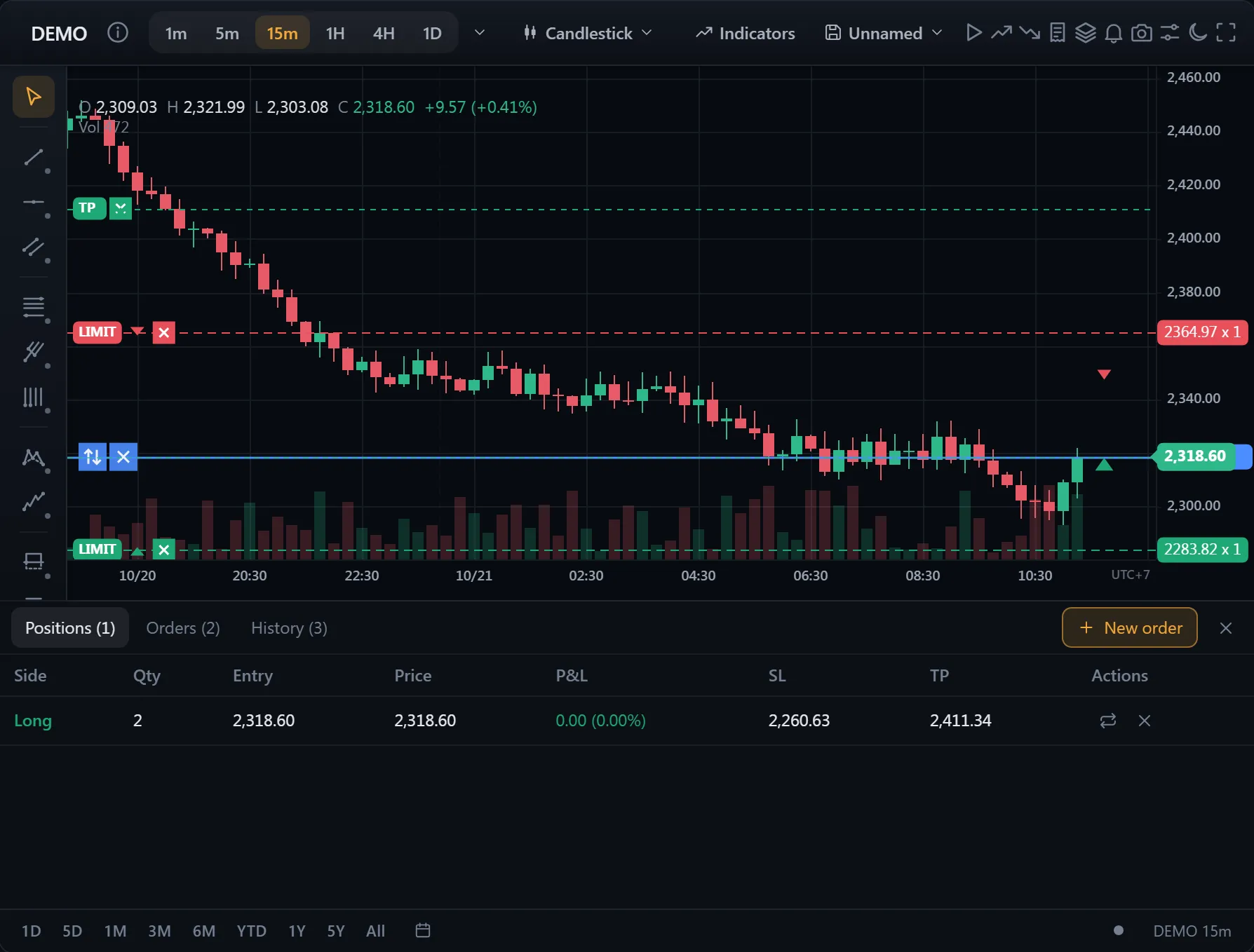 ● ДемоОрдера и позиции на графикеСмоделированные рыночные данные, созданные в вашем браузере
Installation
Use whichever package manager you prefer:
npm install @tradecanvas/chart
# or
pnpm add @tradecanvas/chart
# or
yarn add @tradecanvas/chart
Drop-in widget
ChartWidget is the fastest path to a working chart. It renders a full
trading UI inside any host element — toolbar, drawing sidebar, settings
dialog, status bar — with zero framework dependency.
import { ChartWidget } from '@tradecanvas/chart/widget'
import { BinanceAdapter } from '@tradecanvas/chart'

const widget = new ChartWidget(document.getElementById('chart')!, {
  symbol: 'BTCUSDT',
  timeframe: '5m',
  theme: 'dark',
  adapter: new BinanceAdapter(),
  historyLimit: 500,
  trading: true,
  // Optional features
  watchlist: true,         // right-side sparkline panel
  persistLayouts: true,    // remember per-symbol indicators / drawings
  // dragDropImport defaults to true — drop a CSV / JSON onto the chart
})
Out of the box, the widget supports a full set of pro-trader gestures: drag past the last bar into empty future space, drag the price/time axes to scale, Ctrl/⌘+drag to select several drawings, Shift+drag to measure, Alt+click to pin a tooltip, Ctrl/⌘+K for the command palette, Ctrl/⌘+P for symbol search, and ? to see the full shortcut sheet.
Headless Chart
For full control over the surrounding UI, use the lower-level Chart class directly. You bring your own toolbar; you keep all features:
import { Chart } from '@tradecanvas/chart'

const chart = new Chart(host, {
  chartType: 'candlestick',
  theme: 'dark',
})

chart.setData(bars)
chart.addIndicator('sma', { period: 20 })
Framework wrappers
React, Vue, and Svelte wrappers are available in the frameworks section.
With a coding agent
Coding agents can learn TradeCanvas instead of guessing it. The agent skill teaches the API with examples that are type-checked; in Claude Code it installs with two commands:
/plugin marketplace add bonguynvan/tradecanvas
/plugin install tradecanvas@tradecanvas
The MCP server, @tradecanvas/mcp, answers from the library's own catalog: indicator ids, their params and the keys of their lines; drawing tools and the points each takes; the options of ChartWidget, Chart and ChartWidgetGrid; feature switches and style keys. Its validate_options tool checks an options object before it is used and names the option that was meant. In Claude Code:
claude mcp add tradecanvas -- npx -y @tradecanvas/mcpCursor, Claude Desktop and most other clients take the same command in their MCP settings:
{
  "mcpServers": {
    "tradecanvas": { "command": "npx", "args": ["-y", "@tradecanvas/mcp"] }
  }
}
On Windows outside WSL, npx starts through cmd: claude mcp add tradecanvas -- cmd /c npx -y @tradecanvas/mcp, or in the settings "command": "cmd", "args": ["/c", "npx", "-y", "@tradecanvas/mcp"]. In Git Bash, which runs the ! commands of Claude Code on Windows, write //c: Git Bash turns /c into a path.
Without either, llms.txt and llms-full.txt hand an assistant the docs in one file.
Next steps
- API reference — full surface of
ChartandChartWidget - Chart types — 18 built-in chart types
- Indicators — catalog of 134 indicators
- Realtime & replay — streaming adapters and replay mode
- Analytics — strategy backtester and risk metrics